The window
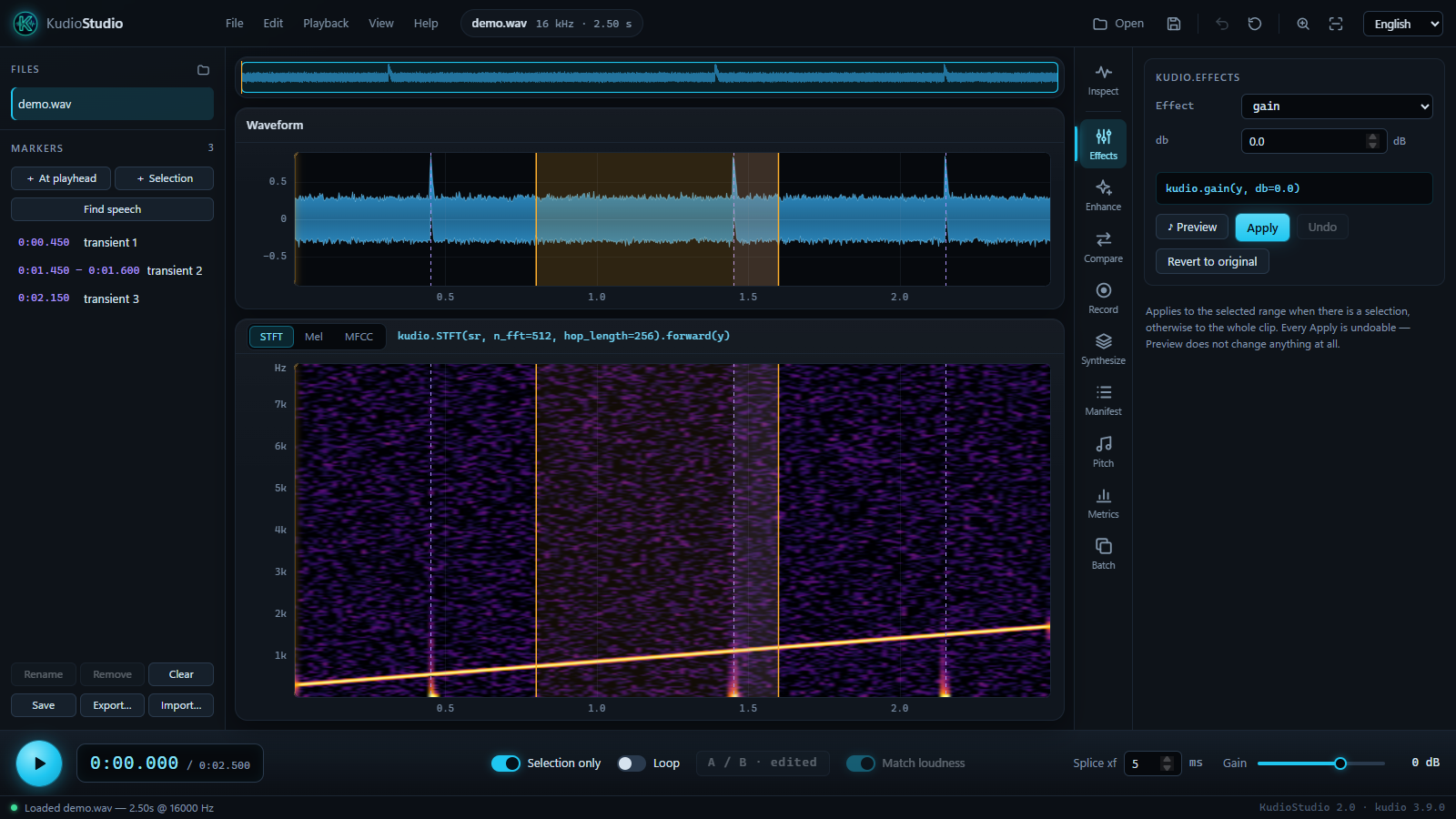
The parts of it
The top bar holds the menus, the name, sample rate and length of the clip that is open, and the buttons used most: Open, then five icons whose tooltips name them, Save audio as, Undo, Revert to original, Zoom to selection and Zoom out to whole clip. The language menu is at the far right.
Files, on the left, lists every file opened in this session. Click one to switch to it, and its × to take it off the list. The folder button beside the heading adds more.
Markers, under it, are named points and ranges that stay put, unlike a selection. Markers, on the editing page, covers them.
The plots fill the middle:
- the overview strip along the top shows the whole clip, with the stretch on screen marked. Drag the mark to move along the clip, or click anywhere else in the strip to jump there.
- the waveform, and under it the analysis image: an STFT, a mel spectrogram or MFCCs, switched with the three buttons above it. Beside them is the kudio call that computed the image, as you would write it in a script.
- move the pointer over either plot and its corner reads out the time and the value under it. On the waveform that is the amplitude. On the image it is the frequency for an STFT, the band for a mel spectrogram and the coefficient for MFCCs, those two counted from 0.
The two plots share their time axis, the selection, the playhead and the markers, so whatever you do on one shows on the other.
The rail on the right lists the tools, and the panel beside it shows the one chosen. Inspect comes first; panels that other packages add come last, under a rule.
The transport along the bottom plays the clip. The status bar under it says what the last action did. The dot at its left is green while nothing is running and amber while a job runs, such as a denoise or a batch; the job's name then shows on the right, before the version numbers. The dot turns red if the page loses its connection to the program. The versions of KudioStudio and kudio are at the far right.
Selecting, zooming and moving
- Select
- Drag across either plot. Within a few pixels of a selection's edge the pointer turns into a double arrow, and dragging there moves that edge instead of starting a new selection. For an exact range, type the start and end into Selection in the Inspect panel. Ctrl+A selects everything and Esc clears the selection.
- Move the playhead
- Click either plot. Clicking while it plays carries on playing from there. Home goes back to the start.
- Zoom
- The wheel zooms around the pointer, and + and - around the playhead. Ctrl+E, or a double-click on either plot, fills the plots with the selection; Ctrl+F, or a double-click with nothing selected, shows the whole clip again.
- Zoom the vertical axis
- On the analysis image, the wheel over its vertical axis, or Ctrl + wheel anywhere on it, narrows that axis around the pointer, so the lowest few hundred hertz of an STFT can fill the plot. A double-click on the axis shows all of it again.
- Scroll
- Shift + wheel, a sideways swipe on a touchpad, a drag with the middle button or with Alt held, Left and Right, or the overview strip.
Playing
Space plays and stops. What plays depends on two switches on the transport:
- Selection only, on by default: with a selection, play just that. Off, or with nothing selected, play from the playhead to the end.
- Loop (Ctrl+L): play the same range again when it reaches the end.
Playback that runs to the end puts the playhead back where it started, so Space again repeats what you just heard.
Gain, at the right of the transport, sets the playback level, from −24 dB to +12 dB. It changes what you hear and never the audio, so nothing you save is louder for it.
The A / B button and Match loudness beside it compare your edit with the file as it was opened; A/B against the original explains both. Splice xf is the crossfade at every cut and paste, in milliseconds: Every join crossfades.
Shortcuts
| Key | Action |
|---|---|
| Ctrl+O / Ctrl+Shift+S | Open / Save As |
| Ctrl+Shift+E | Save the selection as its own file |
| Ctrl+Q | Quit, after a running job, never in the middle of one |
| Ctrl+Z | Undo the last edit |
| Ctrl+X / Ctrl+C / Ctrl+V / Del | Cut / copy / paste / delete the selection |
| Ctrl+T | Crop to the selection |
| Ctrl+A / Esc | Select all / clear the selection |
| Space | Play / stop |
| Home | Playhead back to the start |
| Ctrl+L | Loop on / off |
| Ctrl+B | A/B against the original |
| Ctrl+E / Ctrl+F | Zoom to the selection / zoom out to the whole clip |
| + / - | Zoom in / out around the playhead |
| Left / Right | Scroll along the clip |
| F1 | This guide, in the browser |
The keys reach the window only when the focus is not in a field that takes text, a number or a choice. A window-wide Ctrl+C would take copy away from every path field in the panels, and Space would stop you typing a file name with a space in it.